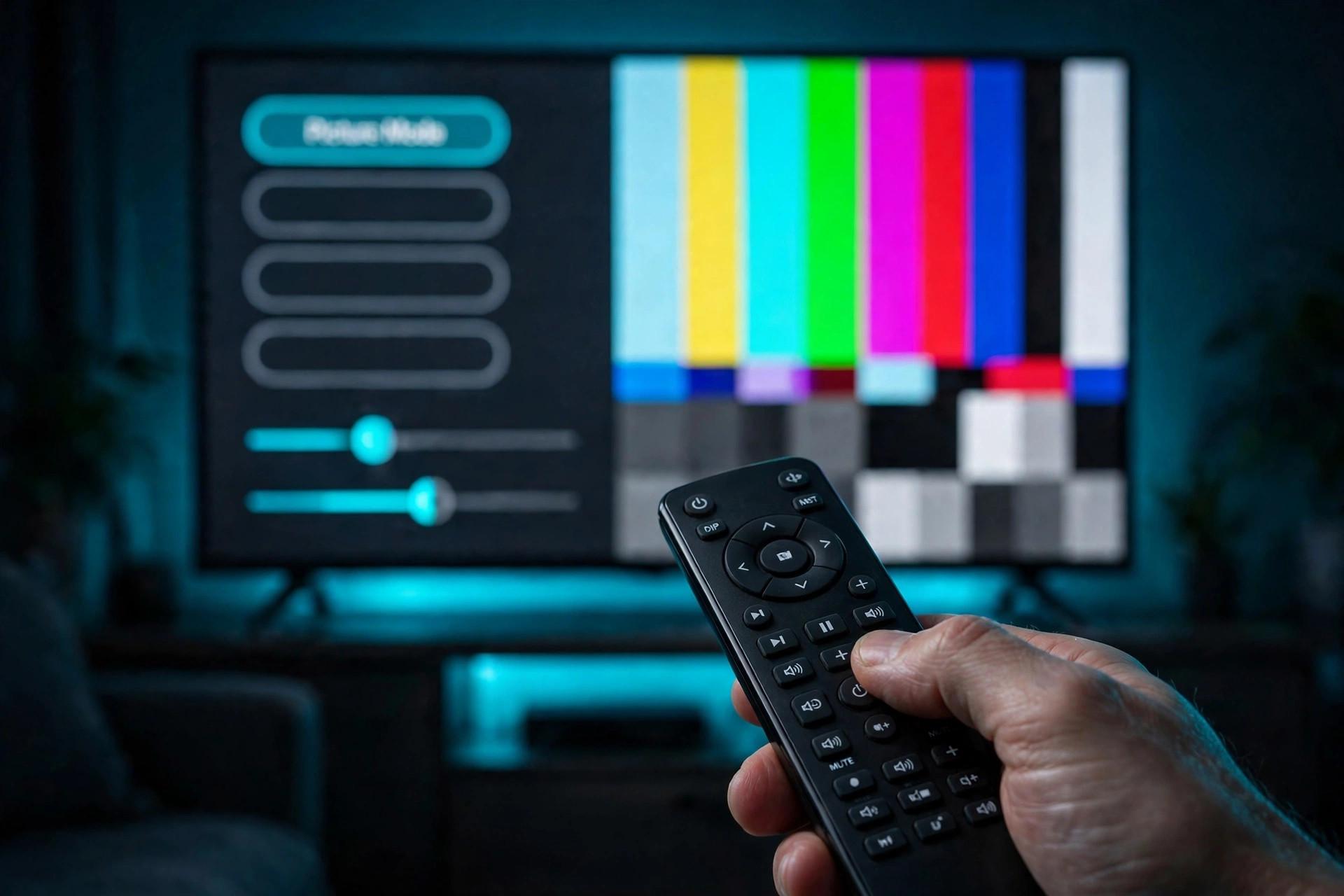
A new TV ships with settings chosen for the store, not for your living room. The store is bright, the TV is on Vivid, the motion smoothing is on, and the picture screams for attention across a wall of fifty other TVs. Your living room is darker, quieter and yours — and the same settings that win the store make the film look like cheap video, the shadows look like flat black, and the game look like it was shot through a filter. Fifteen minutes of changes fix all of it, and this article walks through them in order.
The order matters, because the settings interact: the HDR input setting has to be on before the picture mode matters, and the picture mode has to be right before the color temperature matters. Work through them one at a time, test after each one with the same game and the same film, and write the final settings down — the next firmware update can reset them, and the note saves the fifteen minutes a second time.
4K IPTV Picture Settings USA: step 1 — the HDR input setting
The HDR input setting is the single most important change, and it is the one most households never make. On LG it is called HDMI Ultra HD Deep Colour, under Settings, General, Devices, HDMI Settings. On Samsung it is called Input Signal Plus, under Settings, Connections, External Device Manager. On Sony it is called Enhanced Format, under Settings, Channels and Inputs, External Inputs, HDMI Signal Format. On Hisense it is called HDMI 2.0 Format or Enhanced. Turn it on for the input the Firestick, Apple TV or other player uses — and for the input the TV app uses, if the TV runs the app itself.
The test is the badge: play a 4K film you know is graded in Dolby Vision or HDR10, and look for the HDR or Dolby Vision badge in the corner in the first five seconds. Badge means the input setting worked and the whole chain — stream, player, cable, input, panel — is passing HDR. No badge means the setting is off, the cable cannot carry HDR, or the player is not sending it. Check the setting first, then the cable: a 4K60 HDR feed needs a Premium High Speed cable rated at 18 Gbps, about $10, and the cable in the drawer from 2015 is almost certainly not one.
4K IPTV Picture Settings USA: step 2 — picture mode
Picture mode is the preset that decides everything else, and the right one depends on what you watch. Filmmaker Mode on LG and Samsung, or Cinema and Custom on Sony, shows films exactly as graded — the color, the brightness and the motion the director intended. The sports preset is brighter and sharper, and it is the right choice for a live game, because the stadium needs brightness more than it needs accuracy. Vivid is wrong for everything: it crushes the shadows, blows out the highlights, and turns skin into plastic.
Set Filmmaker Mode or Cinema as the default, and switch to the sports preset only for the game — most TVs remember the mode per input, and some remember it per app, so the switch takes one button. The test is a dark scene in a film: in Filmmaker Mode the shadows have layers, and in Vivid they are one flat black. The HDR guide covers the formats behind the modes, and the best TV guide compares the panels.
4K IPTV Picture Settings USA: step 3 — motion, sharpness and noise
Motion smoothing is the setting that ruins the most movie nights, and it ships turned on under a different name on every brand: TruMotion on LG, Motion Plus on Samsung, Motionflow on Sony. It invents frames that were never shot, and turns a film into cheap video — the soap opera effect. Turn it off for films and series. Keep it on for live sport only if you like it, because the ball is smoother with it on and the film is worse. The judder that remains in a 24fps film is part of the look, not a defect.
Sharpness should be 0 for any 4K source, because the feed is already sharp and the sharpness control adds halos around everything — the white edge around the score bug, the ringing around the anchor's hair. Noise reduction should be off for 4K too, because it smears fine detail in dark scenes to hide noise that is not there. Both settings exist for bad analog signals from twenty years ago, and neither helps a 4K stream. Set them once, and leave them alone.
4K IPTV Picture Settings USA: step 4 — brightness, Eco and color
Brightness is the setting people turn up first and should touch last. The backlight or OLED brightness should be at the level the room needs — high for a bright room, lower for a dark one — and the contrast should stay near the default, because raising it clips the HDR highlights the film needs. Eco mode and the ambient light sensor should be off, because both dim the panel just when HDR needs full brightness, and the sensor's changes are the reason the picture seems to breathe during a film.
Color temperature should be Warm 2 on LG and Samsung, or Warm on Sony — it looks yellow for the first hour and correct forever after, because that is the white point films are graded to. Color itself should stay near the default of 50; raising it makes the grass neon and the skin sunburned. If the picture still looks wrong after these steps, the fault is almost never the color — it is the input setting, the mode, or the feed, and the buffering fixes cover the connection side.
4K IPTV Picture Settings USA: step 5 — the player settings
The player app has its own settings, and they matter as much as the TV's. On the Firestick 4K Max, set Video Resolution to Auto up to 4K Ultra HD, Dynamic Range Settings to Adaptive, and Match Original Frame Rate to on. On the Apple TV 4K, turn on Match Dynamic Range and Match Frame Rate under Settings, Video and Audio. On the Nvidia Shield TV Pro, enable Dolby Vision under Display and Sound, and leave AI upscaling on for 1080p feeds. In TiviMate or IPTV Smarters Pro, set the buffer to the largest size and the decoder to hardware first, software second if the hardware decode stutters.
The test for the player is the stream information screen: in IBO Pro Player, press the menu button on a 4K channel and confirm it shows 3840 x 2160. If it shows 1920 x 1080, the feed is the HD one — go back to the channel list and pick the 4K feed, which is listed separately on the sports channels. The player settings are the last link in the chain, and they are the ones most people never open.
4K IPTV Picture Settings USA: the 15-minute checklist
Here is the whole job on one list, in order: one, turn on the HDR input setting for the input the player uses. Two, set the picture mode to Filmmaker Mode or Cinema. Three, turn off motion smoothing for films. Four, set sharpness to 0 and noise reduction to off. Five, turn off Eco mode and the light sensor. Six, set the color temperature to Warm 2. Seven, set the player to 4K, Adaptive dynamic range, and Match Frame Rate on. Eight, use a certified Ultra High Speed HDMI cable. Nine, play the badge test. Ten, write the settings down.
Then watch the game. The wide shot of the field should show the yard lines straight and the crowd made of separate people. The dark scene in the film should show the shadows with layers. The nature documentary should show the leaves and the water in fine detail. If all three hold, the fifteen minutes bought the best picture the TV can show — and the subscription underneath is the one that feeds it. If one fails, the article above says which step to revisit, and support on WhatsApp answers setup questions around the clock.
4K IPTV Picture Settings USA: the note on the fridge
The note on the fridge is the last step and the one that saves the most time: write down the input setting, the picture mode, the color temperature and the player settings, and stick the note to the TV stand. The next firmware update can reset them all, and the note turns a fifteen-minute job into a two-minute one. The settings are the difference between the TV you bought and the TV you watch, and the trial is free for 24 hours — run the badge test tonight, write the note, and watch the game the way the panel was built to show it.
- HDR input on: Deep Colour (LG), Signal Plus (Samsung), Enhanced (Sony)
- Filmmaker Mode or Cinema for films; sports preset for games
- Motion smoothing off for films; sharpness 0; noise reduction off
- Eco mode and light sensor off; color temperature Warm 2
- Player: 4K, Adaptive range, Match Frame Rate on
- Badge test: HDR badge in the first five seconds
| Setting | LG | Samsung | Sony |
|---|---|---|---|
| HDR input | Ultra HD Deep Colour | Input Signal Plus | Enhanced Format |
| Film mode | Filmmaker Mode | Filmmaker Mode | Cinema / Custom |
| Motion | TruMotion off | Motion Plus off | Motionflow off |
If you want to see the difference on your own screen, start the free trial and watch a 4K game or movie tonight. See the plans and prices and pick the length that fits your household, then follow the install guide for your device — most people are watching in under five minutes.