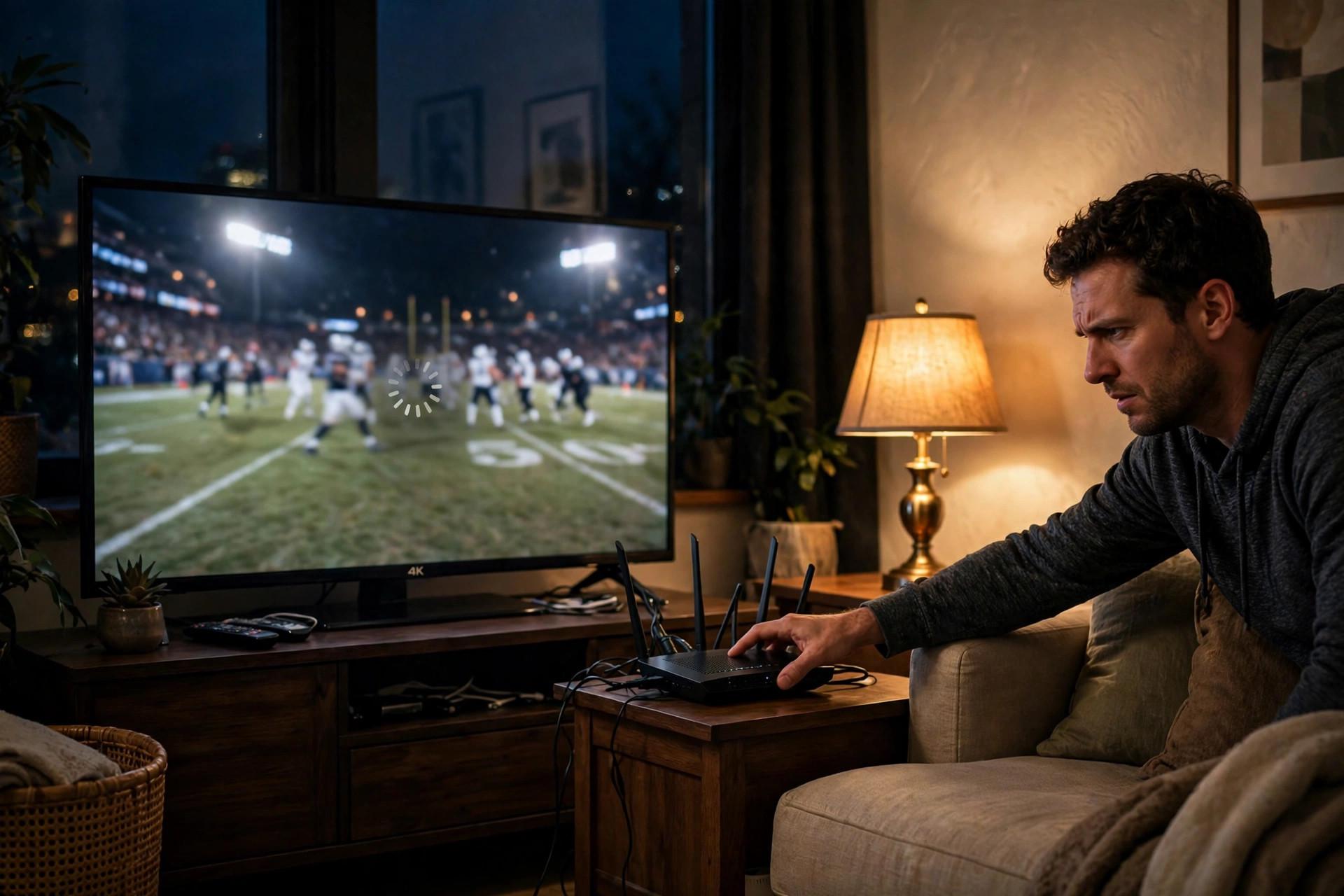
Buffering is the most annoying problem in streaming, because it always happens at the worst moment — the fourth quarter, the final lap, the last scene. The spinning circle is also the most misdiagnosed problem, because the cause is rarely the one people blame first. The service gets the blame, the internet plan gets the upgrade, and the real fault sits in the Wi-Fi path between the router and the TV, untouched. This guide works through the twelve fixes in the order that solves the most cases with the least effort, and the free ones come first.
The order matters. Fix one solves about a third of cases on its own. Fixes one through five solve most of the rest. Fixes six through twelve are for the stubborn cases — the house with thick walls, the apartment with forty neighboring networks, the Sunday when the whole street is streaming at once. Work through them in order, test after each one, and write down what changed. The fix that works is the one you keep.
4K IPTV Buffering USA: fix 1–3 — restart, move closer, change band
Fix 1 is the restart, and it is not a joke. Unplug the Firestick or Apple TV for 30 seconds and plug it back in, then restart the router and the modem by unplugging them for 60 seconds. A router that has been up for 90 days is carrying stale sessions and a full NAT table, and a stick that has been up for a month is carrying a full cache. Two minutes of restarting clears both, and a third of buffering complaints end here. Do it once a month whether you need it or not.
Fix 2 is the band. Open the Firestick network settings and check whether the stick is on 2.4 GHz or 5 GHz. The 2.4 GHz band reaches further, but it is also the band every neighbor's router, baby monitor and smart bulb lives on, and it tops out far below what 4K needs in a crowded building. Move the stick to the 5 GHz network — same password, faster and far less crowded — and retest. Fix 3 is the distance: if 5 GHz does not reach the living room, move a mesh node into the room, or move the router out of the closed cabinet it is cooking in. A router in a cabinet is a router at half strength.
4K IPTV Buffering USA: fix 4–6 — Ethernet, cache and the VPN
Fix 4 is the cable. The Firestick 4K Max takes a $14.99 Ethernet adapter that plugs into the power cable, and the Apple TV 4K and Nvidia Shield have Ethernet built in. A wired connection is steady, fast and immune to neighbor interference, and it is the single most reliable fix here. If the router is in another room, a powerline adapter or a mesh node with an Ethernet port in the living room gives the same result without a cable through the hallway. The Firestick guide covers the same fixes on the stick itself, including the Ethernet adapter for the 4K Max.
Fix 5 is the cache. On the Firestick, go to Settings, Applications, Manage Installed Applications, open IBO Pro Player or TiviMate, and choose Clear Cache — not Clear Data, which deletes the playlist and the login. A cache that has grown for months slows the app and can corrupt the stream. Fix 6 is the VPN: turn it off. A VPN server in another state adds latency and can cut throughput in half, and a free VPN can cut it to a quarter. Unless you need the VPN for a specific reason, the stream is faster without it.
4K IPTV Buffering USA: fix 7–9 — buffer, decoder and the feed
Fix 7 is the buffer. In TiviMate, open Settings, Playback, and set the buffer size to the largest option; in IPTV Smarters Pro, open Settings, then Player, and raise the buffer the same way. A bigger buffer means the player holds more of the stream ahead of the picture, so a two-second dip in the connection never reaches the screen. The trade is a slower channel change — a second or two more per zap — and for a game that trade is worth it every time.
Fix 8 is the decoder. In the player settings, switch between the hardware decoder and the software decoder and test both for ten minutes on a 4K game. On the Firestick 4K Max the hardware decoder is usually right, but a bad firmware build can flip that, and the software decoder can be smoother on some feeds. Fix 9 is the feed itself: check that you picked the 4K feed and not the HD feed, and if the 4K feed buffers while the HD feed is clean, the connection is short on throughput — drop to the HD feed for the night and fix the connection in the morning.
4K IPTV Buffering USA: fix 10–12 — the router, the plan and the time
Fix 10 is the router. A router from 2018 cannot move a 4K stream to three TVs at once, and a router with the wrong channel sits on the same frequency as every neighbor. Log in to the router, set the 5 GHz channel to one that is empty — 36, 44, 149 or 161 are usually quiet — and turn on the automatic channel selection if it exists. If the router is rented from the provider, ask for the newest model; the upgrade is often free, and the old one is the bottleneck.
Fix 11 is the plan, and it comes last for a reason. Upgrade only if the speed test at the router itself shows under 50 Mbps at 8 PM — if the router shows 200 Mbps and the TV shows 20, the plan is fine and the Wi-Fi is the fault. Fix 12 is the time: test at 8 PM, not at noon, because the evening is when the street is busy and the stream is hardest. If the picture holds at 8 PM on a Sunday, it holds all week — and the internet speed guide has the numbers to prove it.
4K IPTV Buffering USA: the Sunday test that proves it
Run the Sunday test after the fixes, not before. Start the free trial or the subscription on a Sunday, put the 1 PM games on the biggest TV, and watch RedZone through the whole window. Count the freezes and write down when they happen. Zero is the target. One freeze in four hours is a network dip and not worth chasing. A freeze every ten minutes is a fault that is still there, and the fix is one of the twelve above — work back through them in order, testing after each one, until the number is zero.
The trial is the right tool for the test because it is the real service, not a demo: every channel, every 4K feed, every movie. If the trial buffers on a Sunday and the fixes do not help, message support on WhatsApp during the game — a real technician can check the feed and the server load while you watch, and tell you whether the fault is the stream or the house. That answer is worth more than a dozen guesses.
4K IPTV Buffering USA: when the fault is not yours
Sometimes the fault is genuinely not in the house. A channel feed can go down, a server can be overloaded on a PPV night, or the broadcaster's own feed can stutter — and in those cases no fix at home will help, because the picture is broken before it reaches you. The way to tell is the pattern: if every channel buffers at once, the fault is the connection or the service; if one channel buffers while the others are clean, the fault is that channel's feed, and switching to the backup feed or the HD version of the same channel usually fixes the evening.
Message support on WhatsApp when the pattern points at the feed. A good support team will confirm the fault, move you to a backup feed, or credit the time — and the answer comes in minutes, not days. If support cannot see a fault and the fixes above do not help, the last check is the device: try the same channel on the phone over the same Wi-Fi. If the phone is clean and the TV buffers, the TV or the stick is the fault, and a factory reset of the stick is the last step before replacing it. Before the factory reset, the picture settings guide is worth ten minutes — a wrong decoder setting buffers exactly like a bad connection.
4K IPTV Buffering USA: the order is the fix
The order is the fix, and it is worth repeating: restart, band, distance, cable, cache, VPN, buffer, decoder, feed, router, plan, time. Most people start at the plan and spend $20 a month for nothing, because the plan was never the fault. Start at the restart and spend two minutes for free, and a third of the time the evening is saved before the game starts. Write down what you changed and what it did, because the next time the circle appears — and it will, once, on a Sunday — you will know exactly which fix to reach for first.
- Restart the stick and the router — fixes a third of cases
- Move to 5 GHz Wi-Fi or Ethernet — the most reliable fix
- Clear the player cache monthly (not Clear Data)
- Turn off the VPN — it can halve the speed
- Set the largest buffer in TiviMate or Smarters Pro
- Test at 8 PM on Sunday, not at noon on Tuesday
| Fix | Cost | Time |
|---|---|---|
| Restart stick + router | Free | 2 minutes |
| 5 GHz Wi-Fi | Free | 1 minute |
| Ethernet adapter | $14.99 | 5 minutes |
| Clear cache | Free | 1 minute |
| Largest buffer | Free | 1 minute |
| New router | Often free | 30 minutes |
If you want to see the difference on your own screen, start the free trial and watch a 4K game or movie tonight. See the plans and prices and pick the length that fits your household, then follow the install guide for your device — most people are watching in under five minutes.